
How Small Businesses Can Prepare Multilingual PDF Guides with PDFTranslator.org

A small business may serve customers who prefer different languages, even when the team works from one office. Product instructions, service guides and onboarding documents can all become part of that communication gap. Translating an email alone may not be enough if the attached PDF still contains important information in another language.
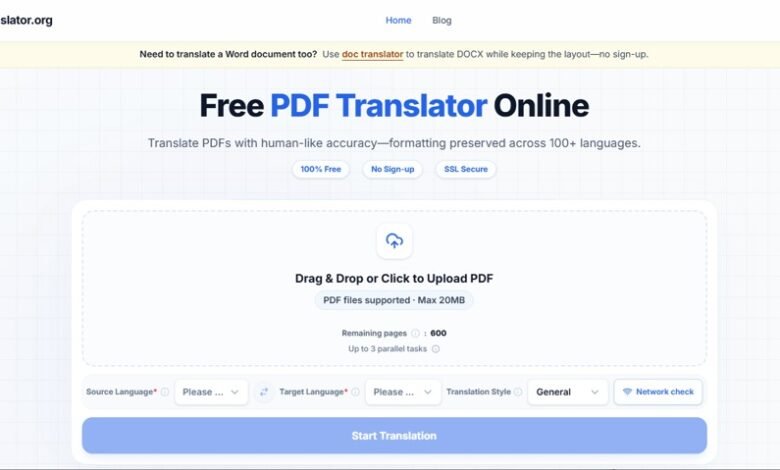
An AI PDF translator can help create a first translated version without requiring a team to copy the text into a new document and rebuild its pages manually. PDFTranslator.org supports more than 100 languages, accepts PDFs up to 20 MB and aims to retain the document’s layout. This can help keep headings, tables and illustrations connected to the relevant text.
The translated PDF still needs a human check before it reaches a customer. A price, date, product name or instruction can change the meaning of a document if it is translated incorrectly. A simple process—confirm the source, choose the language pair, review the result—helps a small team prepare materials more consistently.
Begin with the customer and the document
Before translating, decide who will use the document and what they need to do with it. A product guide may help a customer set up a device. A service document might explain what to prepare before an appointment. An onboarding PDF may describe account steps, support options and contact details.
That purpose determines what deserves the closest review. For a setup guide, check numbered instructions and menu names. For a price sheet, verify amounts, dates and conditions. For an onboarding document, confirm that the links and contact information still work.
Check the version as well. Confirm the document’s title, date, revision and product model before processing it. Translating an outdated guide can create problems even if the language is otherwise accurate. Give the source and translated copies clear, matching filenames, such as Setup-Guide_EN_Rev2.pdf and Setup-Guide_FR_Rev2.pdf.
Review the file before uploading
A PDF may include more than customer-facing text. Draft comments, internal pricing notes, personal details or material not approved for external sharing can remain in the file. Review its contents before using an online service, and follow your organisation’s privacy and data-handling policies.
If something should not be shared, remove it in the source application or an authorised PDF editor before uploading, where policy permits. Do not assume translation will remove hidden information or make a document safe for distribution.
It is also useful to check whether the text can be selected. PDFTranslator.org does not currently support OCR or scanned-PDF translation. If the PDF consists of scanned pages, use a separate OCR tool to extract the text before translating it through an appropriate workflow. Extraction quality can depend on scan clarity, skew, contrast and font size, so check the OCR output against the original—especially tables, handwritten notes and small labels.
Choose the language pair deliberately
Select the source language and target language yourself rather than assuming the service will identify the source automatically. When a document contains multiple languages, note which pages or sections need particular attention.
Regional differences matter too. A guide prepared for Spanish-speaking customers in Mexico may need different wording from one intended for Spain. Ask a local colleague or customer-facing team which language variant is appropriate, especially when the PDF contains industry terms or product-specific labels.
For businesses that update the same materials regularly, a short glossary can improve consistency. Record approved translations for product names, service-plan labels, menu items and technical terms. The glossary gives staff a reference when checking new versions and can prevent small wording changes from accumulating across a collection of customer documents.
Translate, then compare side by side
To translate a PDF online, upload the approved file, select the source and target languages, choose a suitable translation style and process the document. PDFTranslator.org does not require account registration for this workflow. After processing, preview or download the result and compare it with the original.
Start with details that influence a customer’s next step:
- Prices, quantities, dates and payment terms
- Product names, model numbers and service-plan labels
- Setup instructions and account requirements
- Warnings, exclusions and conditions
- Email addresses, URLs and phone numbers
- Units, measurements and decimal values
Keep identifiers, web addresses, code and configuration strings unchanged unless an official localised equivalent exists. If the PDF includes legal terms or instructions that affect safety, have an appropriately qualified person review them. An automated translation can provide a draft; it does not replace professional approval.
Check layout and readability
A translated sentence may take up more or less space than the original. Review the PDF page by page for clipped text, overlapping images, crowded tables, captions separated from illustrations and missing characters. Pay particular attention to footnotes and small print, which can be difficult to read even in the source.
Text inside a screenshot or image may need separate treatment. Translating the surrounding page does not necessarily change labels embedded in an image. Check that the explanatory text still points to the correct part of the illustration.
Finally, open the PDF on a device similar to the one customers are likely to use. A document that looks clear on a desktop monitor may be awkward to read on a phone. If customers need to follow links, complete a form or print a page, test those elements too.
Keep versions and approvals organised
Store the source and translated copies together, with filenames that identify their language and revision. Record who reviewed the translation and when. When the source document changes, compare the update with the translated version before sending it again.
For a small team, this does not need to become a complex document-control system. A shared folder and a brief note about the source revision, target language and review status can make it much easier to identify the current approved copy.
Frequently Asked Questions
Does PDFTranslator.org automatically detect the source language?
Choose the source language during setup. Do not assume automatic detection.
Does layout preservation mean the translation is accurate?
No. It can help preserve the document’s structure, but it does not verify terminology or meaning.
What should be checked before sending a translated guide?
Confirm the revision, prices, dates, product names, instructions, links and readability. Review any terms that could affect safety, payment or customer obligations.
Can every business PDF be uploaded?
That depends on the document’s sensitivity and the organisation’s approved-tool policy. Review the file and follow internal data-handling rules before uploading.
A multilingual PDF can make it easier for customers to understand a product or service, provided the translated copy is clear and current. Confirm the language pair, review important details against the source and check the page visually before sharing. Those steps help small businesses make useful customer information available across languages without losing control of the original content.