

Streaming has transformed the way we enjoy music. With millions of songs available at your fingertips, Spotify has become one of the most popular music platforms in the world. However, there’s one limitation many users still face: Spotify doesn’t allow native MP3 downloads. Even with a Premium subscription, downloaded songs are locked inside the app and cannot be transferred to other devices or players.
So, what if you want to listen to Spotify music on an MP3 player, USB drive, car stereo, or any device that doesn’t support the Spotify app? The answer lies in converting Spotify music to MP3. In this guide, we’ll show you how to download Spotify music to MP3 easily and efficiently, while introducing a powerful tool: ViWizard Spotify Music Converter, that makes the process simple for everyone.
Why Download Spotify Music to MP3?
Before diving into the how-to, let’s explore why converting Spotify songs to MP3 is so popular.
First, MP3 is a universal audio format. Almost every device supports it, from smartphones and laptops to car audio systems and smart TVs. Converting Spotify tracks to MP3 gives you true freedom to play your favorite music anywhere.
Second, offline listening without app restrictions is a major benefit. Spotify’s offline downloads require an active subscription and periodic online verification. If your subscription expires, you lose access to your downloaded tracks. MP3 files, on the other hand, are yours to keep permanently.
Finally, MP3 downloads allow easy backup and organization. You can build your own music library, transfer songs to external drives, or share files between devices without limitations.
These advantages make learning how to download Spotify music to MP3 an essential skill for music lovers.
Can You Download Spotify Music as MP3 Directly?
The short answer is no. Spotify encrypts its audio files to protect copyrights. Even Premium users can only download songs in a proprietary format playable inside the Spotify app. That’s why a specialized Spotify music converter is needed to transform these files into standard MP3 format while keeping high audio quality.
This is where ViWizard Spotify Music Converter comes in.
What Is ViWizard Spotify Music Converter?
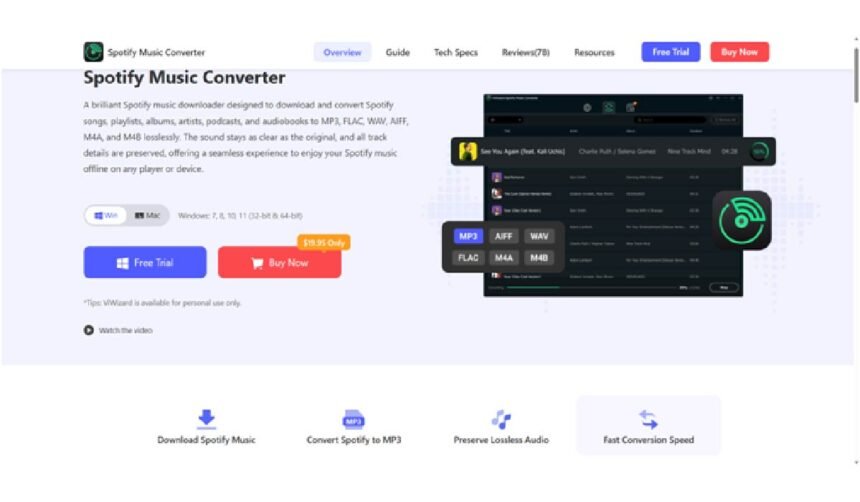
ViWizard Spotify Music Converter is a professional desktop tool designed to download and convert Spotify songs, albums, playlists, and podcasts into MP3 and other common formats. It removes Spotify’s playback restrictions and allows you to save music files locally for unlimited offline use.
What makes ViWizard stand out is its balance of simplicity and performance. Whether you’re a beginner or an experienced user, you can complete the conversion process in just a few clicks.
- Convert Spotify to MP3, WAV, FLAC, AIFF, and more
- Preserve 100% original audio quality
- Keep ID3 tags like artist, album, title, and cover art
- Batch conversion for playlists and albums
- Up to 15X faster conversion speed
- Works with both Free and Premium Spotify accounts
These features make ViWizard one of the most reliable solutions for downloading Spotify music to MP3.
How to Download Spotify Playlist/Song/Album/Podcast to MP3 with ViWizard
Now, let’s walk through the step-by-step process.
Step 1: Install and Launch ViWizard Spotify Music Converter
Begin by downloading and installing ViWizard Spotify Music Converter on your computer (Windows/Mac). Once installed, launch the software. You’ll notice the Spotify web player will automatically open in the software.
Step 2: Select Your Spotify Music for Conversion
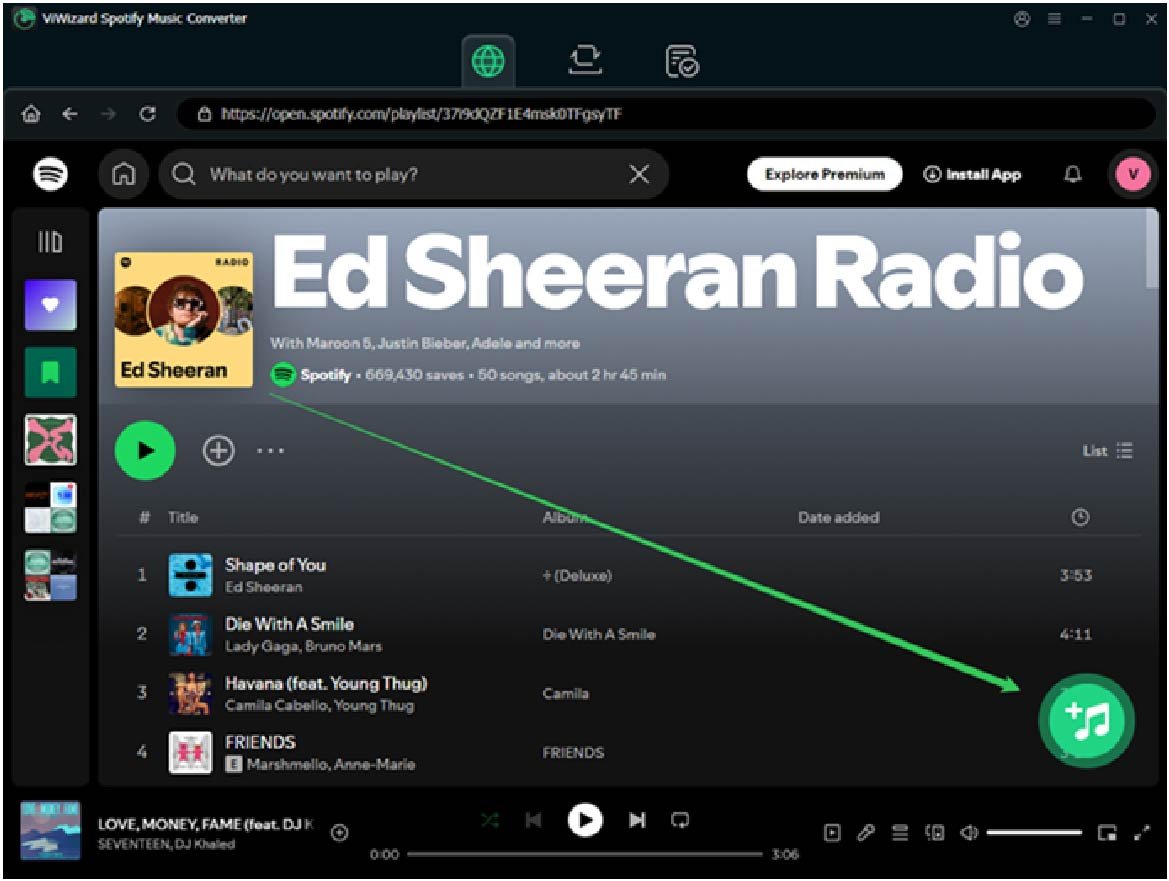
Log in your Spotify account and navigate through your Spotify library. You can select individual songs, entire playlists, albums, or artists’ discographies. Simply open them and click the button of + to add your chosen tracks into the ViWizard interface, or use the function Drag and Drop to import them.
Step 3: Customize Your Output Settings (Optional but Recommended)
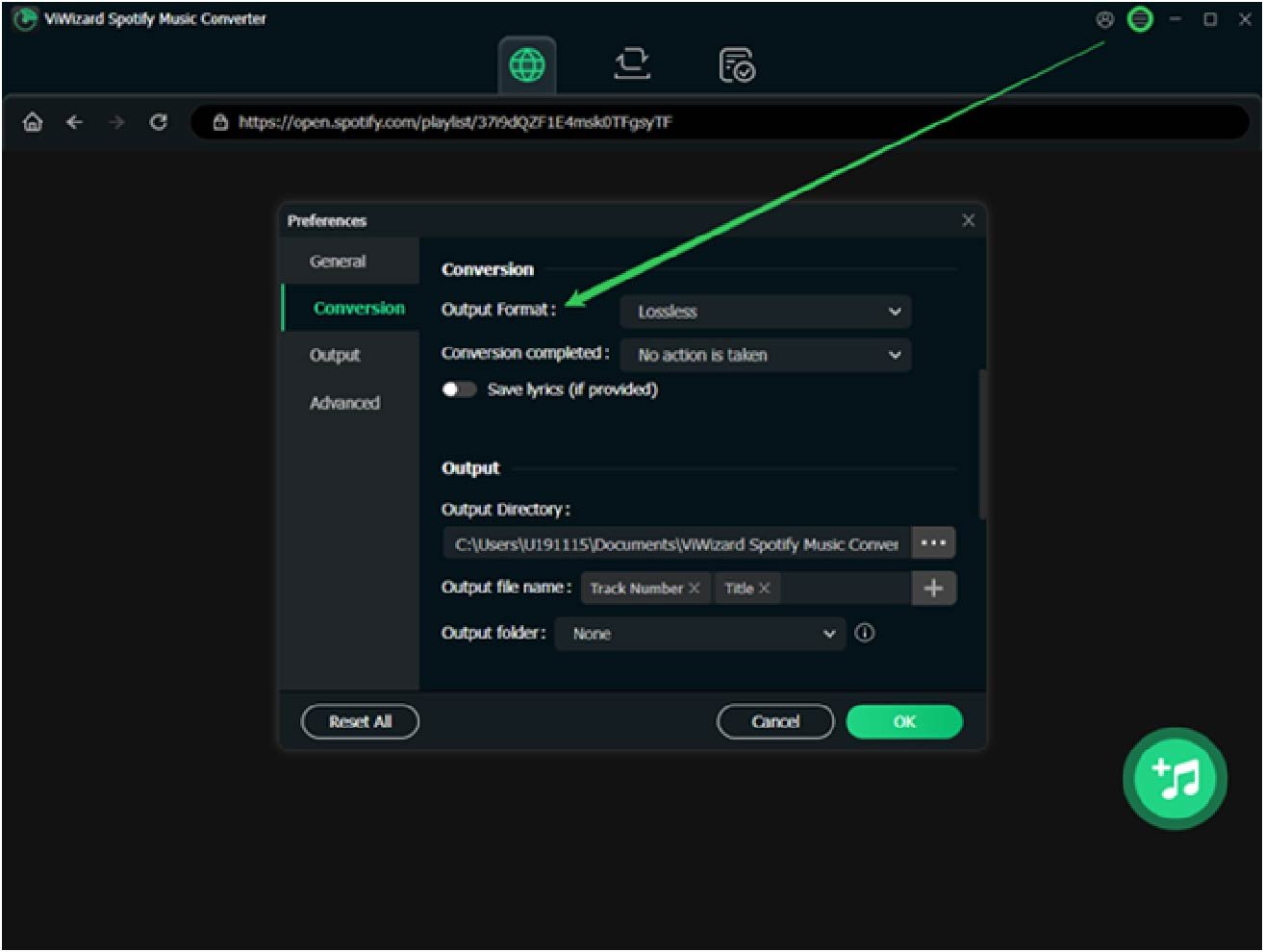
Before converting, click the menu or settings icon in ViWizard to customize your output preferences. Here you can select MP3 as your preferred format and adjust quality parameters. ViWizard supports output qualities up to 320kbps—the gold standard for MP3 audio that balances excellent sound quality with reasonable file sizes. You can also customize the output folder structure if you prefer specific organization for your music library.
Step 4: Initiate the Conversion Process
Once you’ve selected your music and adjusted settings, click the “Convert” button. ViWizard will begin processing your Spotify tracks, removing DRM protection and converting them to MP3 format. The conversion happens at impressive speeds—up to 15× faster than real-time playback—meaning a 3-minute song converts in roughly 12 seconds. You can monitor the progress and, when complete, access your DRM-free MP3 files in the designated output folder.
Why Choose ViWizard Over Other Methods?
You might wonder about alternative approaches like screen recording or using free online converters. These methods typically deliver poor audio quality, often fail to preserve metadata, and can be time-consuming for more than a few tracks. ViWizard offers significant advantages:
Lossless Audio Quality: Unlike recording methods that capture already-compressed audio, ViWizard accesses and converts the original stream, preserving the highest possible quality.
Complete Metadata Retention: All track information and album art remain intact, saving you hours of manual tagging.
Efficiency: Batch processing saves enormous time compared to converting tracks individually.
Organized Output: Files are automatically named and organized according to your preferences.
Final Thoughts
If you’ve ever wondered how to download Spotify music to MP3, the solution is easier than you think. While Spotify itself doesn’t offer native MP3 downloads, ViWizard Spotify Music Converter fills the gap perfectly. With its user-friendly interface, high-speed conversion, and excellent audio quality, it’s an ideal choice for building your own offline music library.
Say goodbye to playback restrictions and hello to unlimited listening freedom. Try ViWizard Spotify Music Converter and take full control of your Spotify music experience today.