
Dot Magazine Dot Magazine
Search
  • Home
  • Business
  • Fashion
  • Life Style
  • Celebrity
  • Technology
    • Tech
  • Travel
  • Crypto
    • Forex
      • Finance
        • Trading
  • Health
  • Contact Us
Reading: Why my External Drive System Turned Unallocated?
Share
Aa
Dot MagazineDot Magazine
  • Home
  • Business
  • Fashion
  • Life Style
  • Celebrity
  • Technology
  • Travel
  • Crypto
  • Health
  • Contact Us
Search
  • Home
  • Business
  • Fashion
  • Life Style
  • Celebrity
  • Technology
    • Tech
  • Travel
  • Crypto
    • Forex
  • Health
  • Contact Us
Follow US
Made by ThemeRuby using the Foxiz theme. Powered by WordPress
Dot Magazine > Blog > Tech > Why my External Drive System Turned Unallocated?
Tech

Why my External Drive System Turned Unallocated?

By Andrew December 22, 2025 6 Min Read
Share

Unallocated drives are drive volumes and partitions with undefined or damaged file system and unassigned drive letter that cannot be recognized and accessed by an operating system. In most cases, the issue is critical, which implies that your drive or volume is damaged and can lead to permanent data loss.

Contents
Steps to Recover Data from Unallocated DriveConclusion

The most common reasons for a drive turning unallocated are related to file System error, outdated drivers, virus, or malware infection. A sudden power failure or surge can also damage a storage drive and lead to the unallocated drive volume issue.

As Windows cannot recognize an unallocated portion on a hard drive or external storage media, you need to allocate the drive partition by defining the file system and assigning a drive letter to it. This is done by formatting the affected drive or drive partition.

Apparently, formatting does repair the unallocated drive but the data contained in the drive is also permanently lost. Therefore, before formatting an allocated drive, ensure that you have taken the required backup to restore the data later.

Or else, you would need to use an advanced Windows data recovery software such as Stellar Data Recovery to get back the data from such unallocated drive partitions. The process is sometimes referred to as unallocated drive recovery where the external or internal drive has become inaccessible.

Steps to Recover Data from Unallocated Drive

  1. Press ‘Windows+X’ and click ‘Disk Management’
  2. Plug in the affected drive (skip this step if it is an internal drive partition)
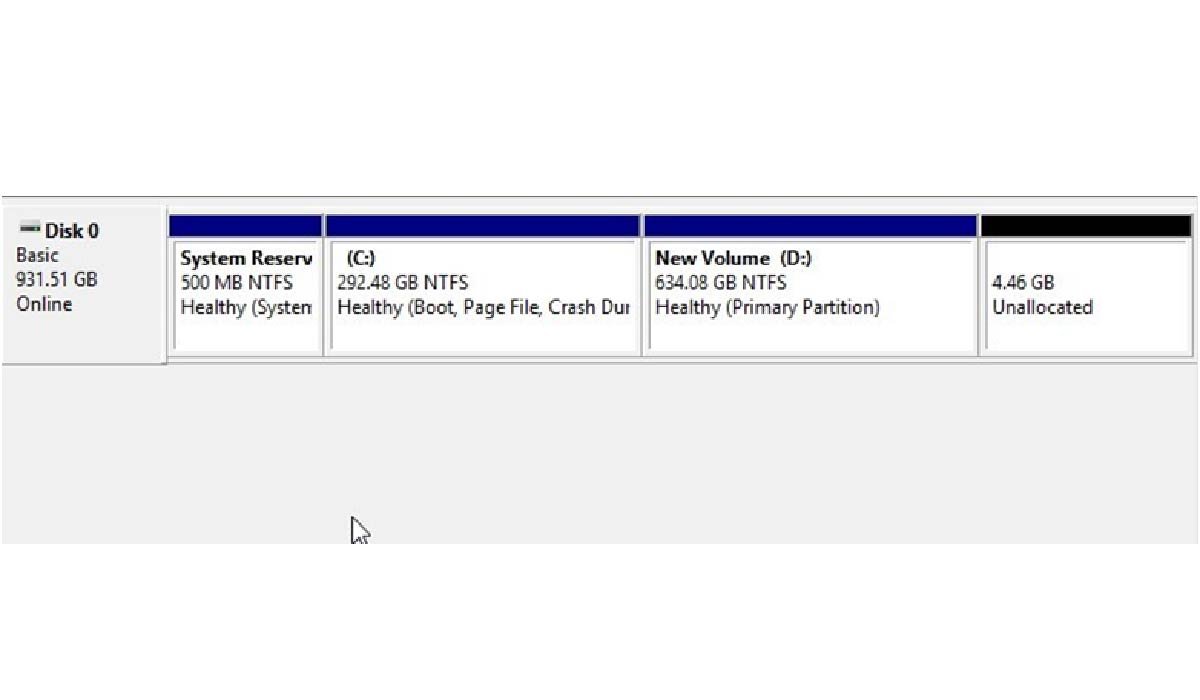
  3. Now note down the size of the unallocated drive partition.
    For instance, our drive has approx. an unallocated partition size of 4.46GB. (Refer to the screenshot)
  1. Download and install Stellar Data Recovery-Standard
  1. Run the data recovery software
  2. Select ‘All Data’ from the available options, and click ‘Next’
  3. Choose ‘Can’t Find Drive’ and click ‘Scan’
  4. Under ‘Select Drive’, choose the storage media that contains the unallocated partition
  5. Click ‘Search’ and the found partitions are listed under ‘Partitions Found’ checklist box
  6. Choose the unallocated partition that has the same size as you see in the ‘Disk Management’ tool

  1. Click ‘Scan’
  2. If the desired data is not found during the quick scan, click on ‘Click Here’ link beside Deep Scan text at the bottom of the software window
  3. Let the software finish the scan process
  4. After the scan, the results are displayed in the left ‘Tree View’ pane
  5. Click the ‘File List’ tab and choose the files and folders you want to recover
  6. You can click on a file to preview it before recovery
  7. After selecting files and folders, click ‘Recover’
  8. Click ‘Browse’ and choose a location where you want to save the recovered data. Don’t select location on same drive or location for uninterrupted data recovery
  9. Finally, click the ‘Start Saving’ button and wait for the software to save recovered files from the scanned unallocated drive

Now you can format the unallocated drive partition and access it normally. Transfer the recovered data to its original location after format.

At this stage, you have successfully performed unallocated drive recovery with the help of Stellar Data Recovery- Standard for Windows.

There are a few other alternative ways that you may try to repair and access an unallocated drive safely. However, use the following troubleshoot methods cautiously and at your own risk, as the process involved may cause further damage to your already inaccessible data or drive.

  1. Use CHKDSK

Open command prompt in admin mode and type chkdsk /r /f X: and press Enter

The CHKDSK utility scans the drive for file system errors that might’ve turned the drive into an unallocated partition, and tries to fix those along with the bad sectors.

However, while fixing the bad sectors, the CHKDSK removes any data contained in the sector. This could cause data loss, so be careful, and keep a backup before running CHKDSK scans.

  1. Disk Management

Disk Management lets you define the volume as RAW without formatting where you can then perform the data recovery process using tools like Stellar Data recovery. Later, you can format the drive and use it normally.

Also Read: How to Fix Unallocated SSD and Recover Data?

Conclusion

We discussed what an unallocated partition is, why a storage media might turn unallocated and how to repair it. Disk formatting is a sure shot method to assign a file system to an unallocated partition and thereby get it up and running.

However, formatting an unallocated partition also destroys access to the data present in it. Therefore, it’s recommended to have the data backed up before formatting the partition.

Or else, use a software to recover data from unallocated drive volumes and partitions.

Sign Up For Daily Newsletter

Be keep up! Get the latest breaking news delivered straight to your inbox.
By signing up, you agree to our Terms of Use and acknowledge the data practices in our Privacy Policy. You may unsubscribe at any time.
Andrew December 22, 2025 December 22, 2025
Share This Article
Facebook Twitter Email Copy Link Print
Leave a comment Leave a comment

Leave a Reply Cancel reply

Your email address will not be published. Required fields are marked *

Recent Post

How Did Syna World Build Identity Without Heavy Marketing?
Fashion
Clipper vs Trimmer vs Foil Shaver: What Each Tool Is Really Made For
Life Style
How Local Lead Generation Enhances Your National Lead Generation Services
Business
Expanding to Africa: Why Dutch Companies Choose Employer of Record Companies in South Africa
Business
Smart, Ergonomic Desks by Progressive Desk
Home Improvement

Categories

  • Accountant1
  • Art3
  • Biography16
  • Blog467
  • Business498
  • Celebration2
  • Celebrity81
  • Cleaning14
  • Construction6
  • Crypto14
  • Crypto News1
  • Digital Innovation4
  • Drink1
  • Driver2
  • E-Commerce1
  • E-SIM3
  • Education36
  • Electric Bike1
  • Entertainment25
  • Fashion100
  • Finance14
  • Fitness7
  • Food14
  • Games18
  • General6
  • Guide49
  • Hair2
  • Health171
  • Home Improvement109
  • Home Selling1
  • Illustration1
  • Insurance1
  • Law8
  • Life Style232
  • Loan1
  • Maintenance4
  • Natural1
  • Online Shopping5
  • Pet8
  • Real State19
  • Recipe1
  • Restoration1
  • Security Guards1
  • Skin Treatment1
  • Smart Investing1
  • Social Media13
  • Sports3
  • Tech276
  • Technology116
  • Topic1
  • Travel61
  • Treatment1
  • Trip1
  • Truck1
  • Uncategorized27
  • Vape1
  • Vehicle7
  • Vibrant Yard1
  • Wellness3

YOU MAY ALSO LIKE

DLP Software Comparison: Data Loss Prevention Platforms Ranked for Cloud Apps

Introduction With the rapid shift toward cloud-based tools and remote work environments, protecting sensitive business data has become more critical…

Tech
December 29, 2025

See More with Confidence: How Tucsen CMOS Cameras Deliver Exceptional Imaging Performance

In today’s fast-moving world of science, research, and industrial inspection, seeing clearly is everything. From laboratory analysis to machine vision…

Tech
December 28, 2025

From Passion to Power: How EngineDIY and Toyan Engine Redefine Model Engineering

Model engineering is more than a hobby; it’s a craft that merges creativity, precision, and technical skill. From small-scale steam…

Tech
December 28, 2025

EFSS Solutions: Simplifying Secure Large File Transfers at the Enterprise Level

Modern enterprises generate massive volumes of data every day, from design assets and source code to analytics exports and high-resolution…

Tech
December 27, 2025
Dot Magazine

Dot Magazine is your ultimate destination for fresh, insightful content across celebrity buzz, tech trends, business insights, lifestyle tips, and fashion flair.
We bring you a smart, stylish take on the stories shaping today’s world, all in one vibrant digital space.

Contact Us Via Email: contact.dotmagazine.co.uk@gmail.com

Recent Post

How Did Syna World Build Identity Without Heavy Marketing?
Fashion
Clipper vs Trimmer vs Foil Shaver: What Each Tool Is Really Made For
Life Style
  • Home
  • Business
  • Fashion
  • Life Style
  • Celebrity
  • Technology
    • Tech
  • Travel
  • Crypto
    • Forex
      • Finance
        • Trading
  • Health
  • Contact Us
Reading: Why my External Drive System Turned Unallocated?
Share
  • Home
  • About Us
  • Privacy & Policy
  • Disclaimer
  • Contact Us
Reading: Why my External Drive System Turned Unallocated?
Share

© 2025 Dot magazine All Rights Reserved | Developed By Digtalscoope

Welcome Back!

Sign in to your account

Lost your password?