

The deadline is in 30 minutes. You double-click your thesis proposal, contract draft, or quarterly report, and instead of your months of work, Word greets you with a cold message: “Word experienced an error trying to open the file.” No preview. No autosave pop-up. Just silence. Panic isn’t an option; protocol is that you must repair the Word document.
A corrupted critical document is a Code Red digital emergency. A wrong response, such as panic-clicking, force-opening, or uploading your only copy to a random online repair tool, can permanently destroy recoverable data. What you need is a controlled, tiered response that maximizes recovery while minimizing risk.
This guide is the Nerd-Approved Emergency Response Protocol for repairing Word document scenarios. It’s a systematic approach to Word document repair, designed for people who need results, not guesses. If you’re searching for how to repair a Word document, start here, and follow the phases in order.
Phase 0: Containment – DO NOT PANIC, DO THIS FIRST
Before attempting any repairs, you must preserve the original work. This phase is about containment, not fixing.
Action 1: Duplicate the file immediately.
Right-click the corrupted document and make a copy. Rename it clearly (e.g., Report_CORRUPTED_COPY.docx). From this point forward, never touch the original. All repair attempts happen on the copy.
Action 2: Check backups before anything else.
Look for clean versions in OneDrive, Google Drive, File History (Windows), or Time Machine (macOS). If a recent version opens correctly, the incident is resolved, and no repair is required.
Action 3: Record the exact error message.
“Unreadable content,” “file is corrupted,” or “Word experienced an error” each suggests different failure points. This is diagnostic data, not noise.
This forensic mindset prevents user-induced data loss. Most failed recoveries happen because people rush this phase, and you should not.
Phase 1: Triage – Employing Microsoft’s Built-In Medics
Before calling in specialists, you always test the official tools. Microsoft Word includes two built-in recovery options. Their success rate varies, but they’re safe, fast, and worth trying.
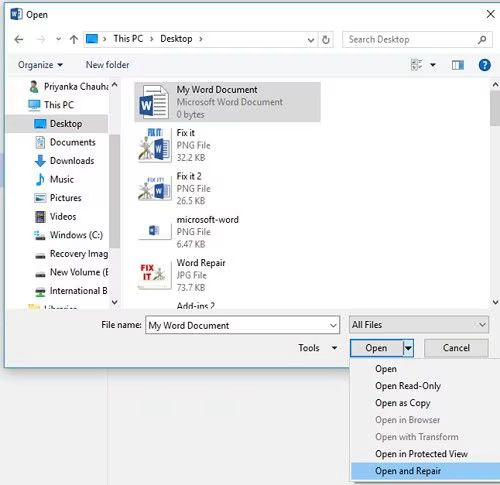
Method 1: Open and Repair (First Line Response)
This is the most common answer to open and repair Word document searches.
How to use it:
- Open Microsoft Word
- Go to File > Open > Browse
- Select the corrupted file
- Click the dropdown arrow next to Open
- Choose Open and Repair
What it actually does (nerd version):
DOCX files are ZIP containers full of XML files. This command attempts to rebuild broken headers, re-index internal references, and correct malformed XML.
Success rate:
High for minor corruption, interrupted saves, partial downloads, or metadata errors. If this works, celebrate responsibly and save the repaired file immediately.
Method 2: Recover Text from Any File (Text-Only Extraction)
If Open and Repair fails, this is your last built-in option.
How to use it:
- File > Open
- Change file type to Recover Text from Any File (.)
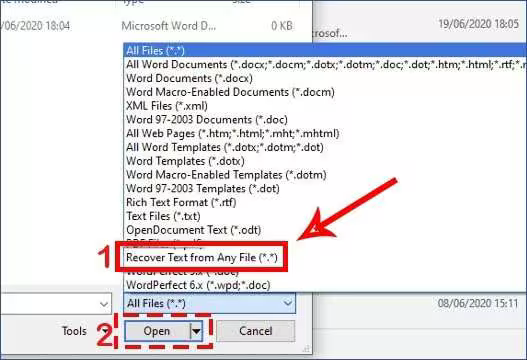
- Select your document
What it does:
Strips everything except raw text. No formatting. No images. No tables. This is a salvage operation, not a restoration.
When to use it:
When formatting is expendable but the text itself is mission-critical.
Transition:
If Phase 1 produced a clean document, you’re done. If you have a half-broken file or only raw text, the corruption is severe. Proceed to Phase 2.
Phase 2: Advanced Intervention – When You Need a Specialist Tool
Built-in Word tools are generic. They aren’t designed for complex corruption involving mixed content, embedded objects, damaged styles, or cross-references. When you’re dealing with this level of failure, you need Word document repair software built for deep structural recovery.
Your Specialist Tool: 4DDiG Document Repair
Think of this as escalating from paramedics to a surgical team. 4DDiG Document Repair is designed specifically to repair Word document files with complex internal damage, cases where Word’s own tools fail.
Why It Works When Others Don’t
There are multiple key features and benefits that 4DDiG brings, which make it better than other options. These are the reasons why it works even when other methods don’t:
Deep-Format Analysis
Instead of surface fixes, it analyzes and reconstructs internal XML streams, document properties, style definitions, and embedded object references, which are areas Word often ignores.
AI-Augmented Recovery
The software understands how Word documents should be structured. It can intelligently rebuild relationships between text, tables, images, and formatting.
Precision & Safety
Unlike risky repair corrupt Word document online tools, 4DDiG works locally on your machine. You can preview results before saving, preserving control and privacy.
The Protocol
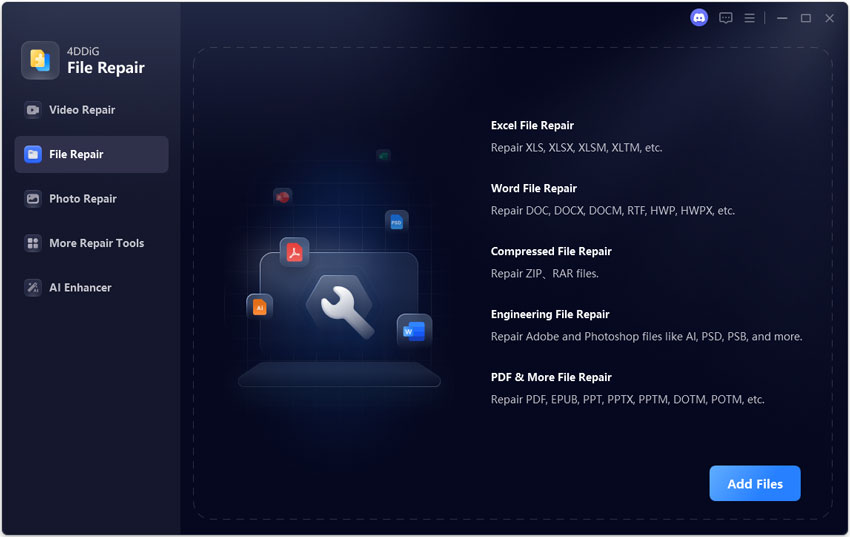
- Download and install 4DDiG File Repair software, then launch it and select the “File Repair” option. Click “Add Files” to load your copied corrupted file into 4DDiG.
- Run the advanced scan by clicking “Repair All”.
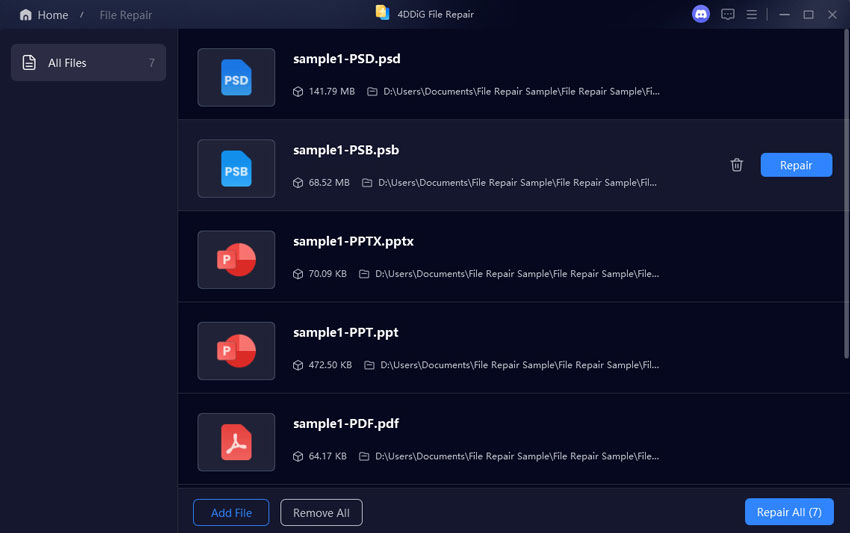
- Preview the recovered document by clicking the “Preview” button against it and check data integrity.
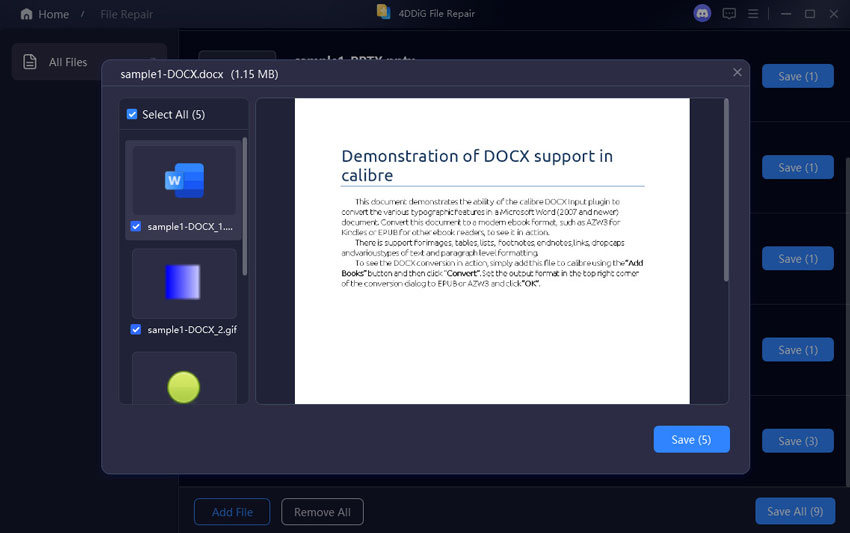
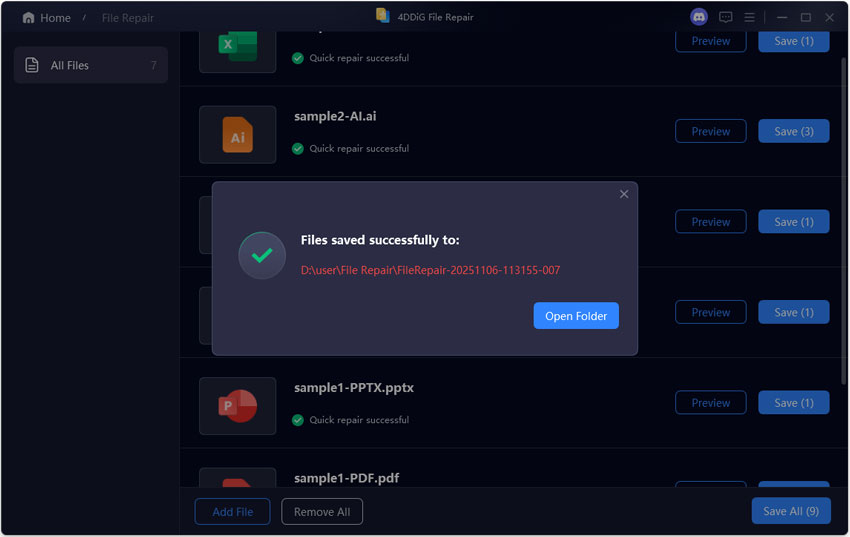
- Save the repaired file to a new location by clicking the “Save” button.
Comparison Table: Open & Repair vs. 4DDiG
| Comparison Criteria | Word Built-In “Open & Repair” | 4DDiG Document Repair |
| Success Rate with Complex Corruption | Low | High |
| Formatting Preservation | Poor | Strong |
| Image & Embedded Object Recovery | Inconsistent | Reliable |
| Repair Speed on Damaged Files | Fast but shallow | Efficient and targeted |
Phase 3: Recovery & After-Action Report
Once recovered, inspect everything with the following verification checklist:
- Headings and styles
- Tables and alignment
- Images and captions
- Headers, footers, and page numbers
- Hyperlinks and references
Never assume success without verification.
After-Action Report: Preventing the Next Code Red
- Enable AutoSave
- Use frequent manual saves
- Follow the 3-2-1 backup rule (3 copies, 2 media types, 1 off-site)
- Prefer .docx over legacy .doc formats
Don’t wait for the next doc-astrophe. Integrate 4DDiG Document Repair into your digital toolkit. Download it now to be prepared or use it immediately if you’re already in Phase 2 of this protocol.
FAQ
Q: I tried to open and repair a Word document, and it didn’t work. Is my file gone?
Not necessarily. Built-in tools fail on complex corruption. Dedicated repair software often succeeds where Word cannot.
Q: Is it safe to use a Word document online tool?
They’re convenient but risky due to privacy concerns, file limits, and weaker recovery algorithms are common. Local tools are safer for critical documents.
Q: Can this protocol repair a Word document corrupted by a virus?
If the file structure remains partially intact, yes. Severe malware damage may limit recovery, but specialist tools offer the best chance.